
How to Clean Up a Messy CSV Before Import (Free)
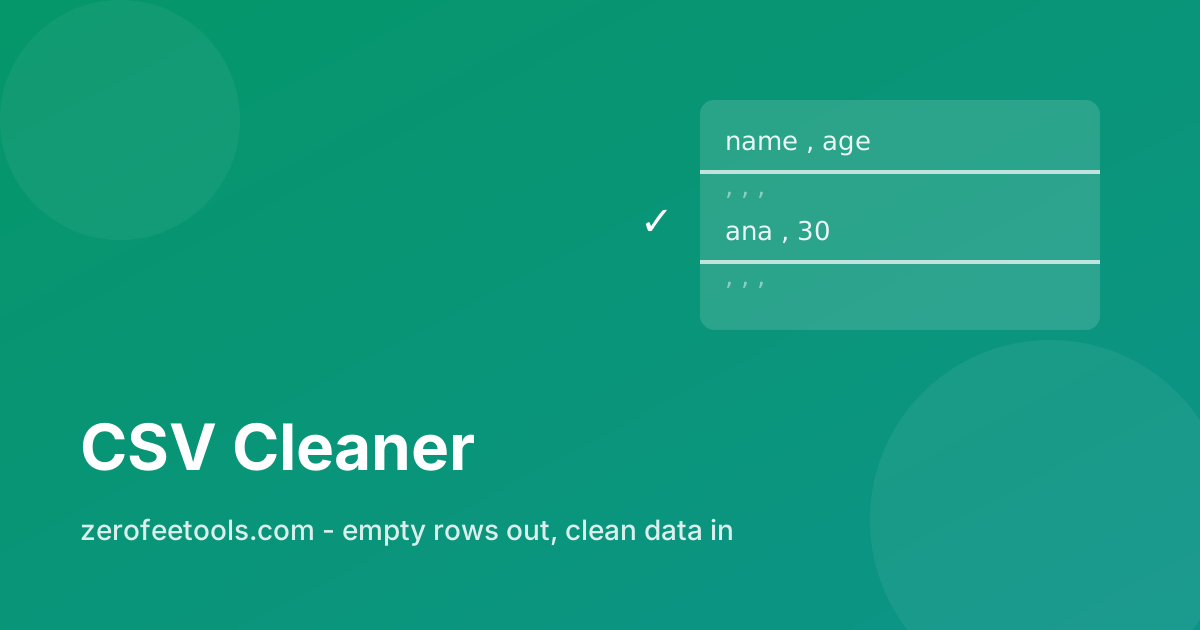
CSV exports are rarely as clean as they look. A download from a CRM, shop platform, or analytics tool often arrives with blank rows scattered through it, empty columns that carried no data, and ragged rows where some lines have fewer cells than the header. Paste that file into an import tool and you get shifted columns, rejected rows, and error messages that point at line 4,096. A CSV cleaner tidies all of it in one pass: it deletes fully empty rows, drops columns that contain nothing but blanks, pads ragged rows to a uniform width, and hands you a line-by-line report of everything it removed.
Cleaning before import is the difference between a five-minute upload and an afternoon of debugging. Data teams clean exports before loading them into databases, shop owners clean supplier feeds before updating inventory, and marketers clean lists before feeding them to email platforms. After cleaning, check for repeats with the CSV duplicate finder, or preview the result as a readable table with the CSV table viewer before you commit to the import.
What makes a CSV file messy in the first place?
Messy CSVs come from exports that include formatting gaps, unused fields, and optional data. Blank rows become phantom records, empty columns confuse import mapping, and ragged rows shift values into the wrong columns. Cleaning all three before import prevents most upload failures.
Blank rows come from exports that include formatting gaps, from spreadsheets where someone pressed Enter a few times at the bottom, and from systems that emit a row for every record including deleted ones. Empty columns come from exports that include every possible field, like a product feed with columns for attributes you never use. Ragged rows, where some lines have fewer cells than the header, come from optional fields: a customer without a company name produces a shorter row, and the next row shifts left.
Each of these breaks imports differently. Blank rows become phantom records in your database. Empty columns confuse column mapping and sometimes get interpreted as data. Ragged rows are the worst: values slide into the wrong columns, so a phone number lands in the address field. A cleaner that handles all three, and shows you a report of what it changed, turns a suspicious export into a file you can trust.
Which cleanups should I run on my CSV?
Choose the cleanups you need: delete empty rows where every cell is blank, drop columns containing nothing but blanks, and optionally pad ragged rows to a uniform width. The line-by-line report then shows exactly what was removed or fixed.
Tick the cleanups you want: removing empty rows, dropping empty columns, and padding ragged rows. The empty-row rule is strict in a good way: a row is only removed when every cell is blank or whitespace-only, so a row with a single stray value is never deleted. Empty columns include the sneaky kind with a header but zero data rows, which carry no information and only confuse mapping.
The ragged-row padding option extends short rows so every line matches the widest row, which fixes the shifted-column problem at its root. After cleaning, read the report: it counts exactly what was removed or fixed, line by line. That report is your audit trail. If an import still complains afterwards, the report tells you the file is structurally sound, so the problem is in the import mapping, not the data.
Will cleaning break my quoted fields and multi-line cells?
A proper cleaner parses quoted fields, so commas inside quoted text and multi-line cells are preserved instead of being split apart. Your descriptions, addresses, and notes survive the cleanup exactly as they were, with only the genuinely empty rows and columns removed.
Quoted fields are where naive cleaners destroy data. A product description like "Large, red, waterproof" contains commas inside quotes, and a bad tool that splits on every comma will shred it into three columns. Multi-line cells, where a field contains an actual line break inside quotes, are even trickier: a line-based cleaner sees extra rows that do not exist. This cleaner parses the CSV properly, so quoted fields, embedded commas, and multi-line cells are preserved exactly.
That is why cleaning is safe to run even on files you cannot fully read yourself. Paste the export or upload the file, run the cleanups, and download the result. If you also need to inspect the file visually first, the CSV table viewer shows it as a readable grid so you can confirm which rows are truly empty before cleaning.
How to use the CSV Cleaner in 4 steps
- Paste the CSV or upload the file. Drop your messy export into the tool. Set the delimiter to match your file if it is not a plain comma, for example a semicolon.
- Tick the cleanups you want. Choose removing empty rows, dropping empty columns, and padding ragged rows. Most exports need all three.
- Press Clean CSV. The tool parses quoted fields safely, applies the cleanups, and builds your tidy file in seconds.
- Read the report and download. Check the line-by-line report to confirm what was removed or fixed, then download the clean file and import it with confidence.
5 practical tips for cleaner CSV imports
- Clean before every recurring import. Supplier feeds and CRM exports get messy in the same ways each month. Making the cleaner the first step of your routine prevents the same import errors every cycle.
- Check the report, not just the file. The line-by-line report is your audit trail. If 40 rows were padded, you know the export has ragged rows and can raise it with whoever generates it.
- Set the delimiter first. If your file uses semicolons, tell the tool before cleaning. Cleaning with the wrong delimiter misreads every row, and the report will show suspicious numbers.
- Dedupe after cleaning, not before. Empty rows can hide duplicate patterns. Run the cleaner first for structure, then the duplicate finder for repeats, then import.
- Keep a copy of the raw export. Download the cleaned file under a new name and archive the original. If an import behaves oddly, you can compare the two and pinpoint what the cleanup changed.
Frequently asked questions
Is this CSV cleaner free?
Yes. Clean unlimited files with no account and no signup. The cleanup runs entirely in your browser, so your data never leaves your device. There are no row limits or watermarks on downloads.
What counts as an empty row?
A row counts as empty when every cell in it is blank or contains only whitespace. Cells with invisible spaces are treated as empty too, which is why trailing-space rows disappear correctly.
Will it delete columns that have data?
Only columns that contain nothing but blanks are dropped, so your real data columns are never touched. Columns with a header but no data rows can be dropped as well, since they carry no information.
Can it fix rows that have fewer columns than the header?
Yes. Ragged rows are a common cause of import failures, and the optional padding step extends short rows so every line has the same width. Your import tool will then read the file without shifting columns.
Does the CSV cleaner remove duplicate rows?
No. The cleaner removes empty rows and columns, not duplicate values. For that, run the file through the duplicate finder first, then clean up the leftovers here. The two tools pair well for a full cleanup pass.
Ready to try it yourself? It's free, no signup required.
Try the free CSV Cleaner →