
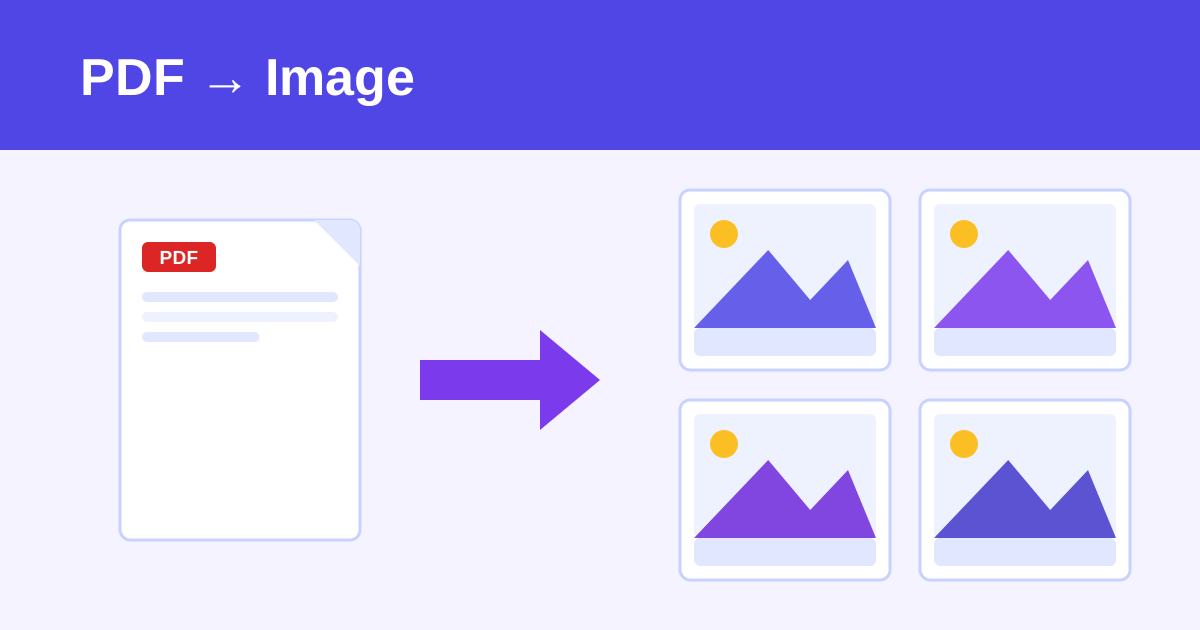
A PDF to JPG converter is a free online tool that renders every page of a PDF as an image. This one converts unlimited pages to JPG or PNG at 72, 150 or 300 DPI, runs entirely in your browser, and adds no watermark.
Drop a PDF here or click to choose a file
Your PDF never leaves your device - conversion happens in your browser.
How to use the PDF to Image Converter in 4 steps
- Drop a PDF into the upload area.
- Choose JPG or PNG and a resolution (72, 150 or 300 DPI).
- Click Convert all pages.
- Download images individually or all at once.
How do I convert a PDF to JPG for free?
Drop your PDF into the upload area, choose JPG as the image format and pick a resolution. Click Convert all pages, then download the images individually or all at once. There is no page limit, no signup and no watermark, and your PDF is rendered entirely in your browser.
Pages render one at a time to keep memory low, so even hundred-page documents convert without crashing your tab.
What DPI should I use when converting PDF to image?
Choose 72 DPI for web use and the smallest files, 150 DPI as a good all-round default, or 300 DPI for print-quality images. Higher DPI means sharper images but much larger files, so match the setting to your goal: 72 for quick sharing, 300 when the images will be printed.
If you need editable text instead of pictures, convert the PDF to Word format first, which preserves the text layer.
Frequently asked questions
Is it really unlimited? Other sites cap me at 2 conversions a day.
Yes. Smallpdf and similar sites limit free users to about 2 tasks per day to push paid plans. This tool runs entirely in your browser with no server, no account and no counter - convert as many PDFs and pages as you like.
Are my PDFs uploaded anywhere?
No. Your PDF is read and rendered locally by your browser. Nothing is sent to any server.
Which DPI should I choose?
72 DPI is fine for web use and small files. 150 DPI is a good all-round choice. 300 DPI gives print-quality images but much larger files.
JPG or PNG?
JPG makes smaller files and is best for photos and scanned documents. PNG is lossless and better for text-heavy pages, diagrams and anything with sharp lines.
Will very large PDFs work?
Yes, pages are rendered one at a time to keep memory use low. Extremely large documents (hundreds of pages at 300 DPI) may take a while on older devices.
Does the text stay selectable in the images?
No - images are pictures of the pages, so text is not selectable. If you need editable text, use a PDF-to-Word style conversion instead.