
Write Markdown With a Live Preview, No Install Needed
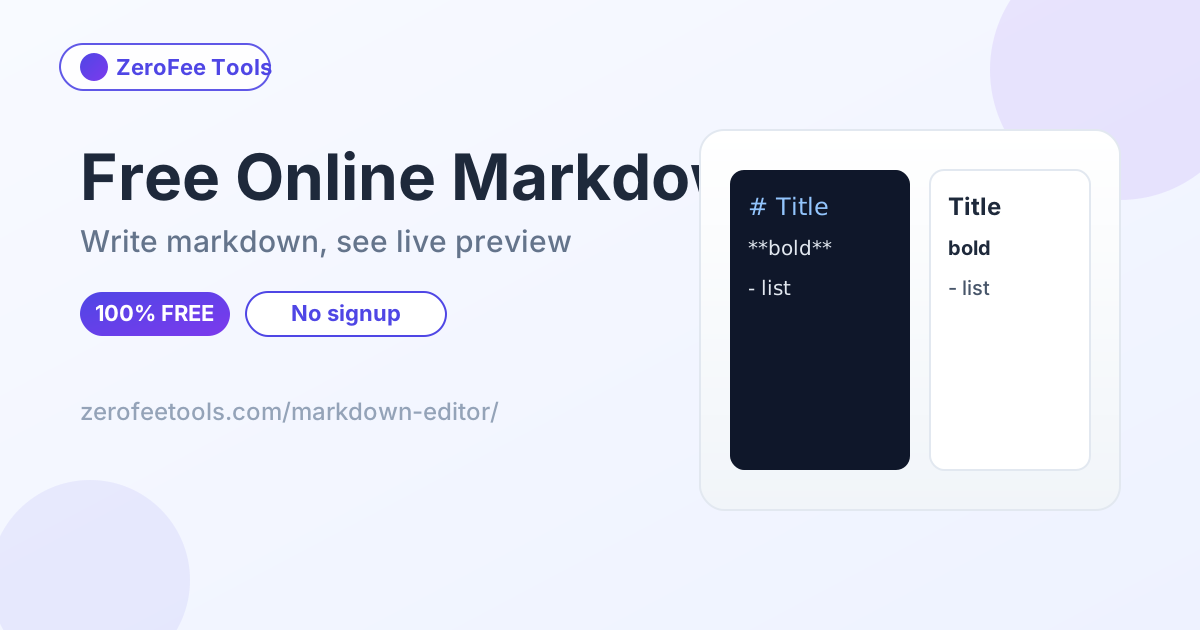
Markdown is plain text, so a document written in it stays readable and portable forever. It is the standard format for README files, documentation, blog drafts, and notes apps, yet most editors that handle it well demand an install or an account. The free online Markdown Editor on ZeroFee Tools needs neither: open the page and you get side-by-side editing with markdown on the left and a rendered HTML preview on the right, updating live as you type.
Developers draft README files in it, bloggers outline posts before pasting them into a CMS, and students take structured notes with headings and lists. A live word count keeps longer writing on target, and one click downloads your work as a .md source file or a ready-to-publish .html file. When you need the raw HTML instead of a file, the markdown to HTML converter produces it instantly, and content coming the other way can be cleaned up with the HTML to markdown converter.
How do you write markdown online without installing anything?
Open the editor in your browser and start typing. Markdown goes on the left, a live HTML preview renders on the right, and a word count tracks your progress. There is no account, no installation, and no save step: the page is the editor.
The editor loads as a single web page with two panes. You type markdown syntax on the left, such as # for headings, ** for bold, and - for list items, and the right pane renders it as formatted HTML the moment you type. There is no save button to remember and no sync to configure; your text lives in the page while you work.
This no-install approach fits quick jobs perfectly. Draft a README on a borrowed laptop, outline a blog post on a tablet, or take meeting notes on a library computer: anywhere with a browser becomes a markdown workstation. Because markdown is plain text, whatever you write can be copied into GitHub, Notion, a static site generator, or any notes app without conversion.
With no account comes no document management to learn. You are not organizing files into folders or naming projects; you are simply writing. For longer work that spans sessions, download the .md file periodically as your save mechanism, then reopen it in the editor or any text app when you continue.
Which markdown syntax does the editor support?
Headings, bold, italic, ordered and unordered lists, links, inline code, code blocks, and blockquotes are fully supported with live rendering. Tables and footnotes are not supported, keeping the editor lightweight and fast for everyday drafting.
The editor covers the core syntax that handles most writing: six heading levels, bold and italic emphasis, ordered and unordered lists, links, inline code with backticks, fenced code blocks, and blockquotes for quoted passages. Each renders live, so a broken link or a mis-nested list is visible the instant you type it rather than after publishing.
Two advanced features are deliberately left out. Tables and footnotes are not supported in this lightweight editor, which keeps it fast and simple for drafting. If your document needs them, write the draft here for speed, then finish it in a full markdown processor, or run the text through the markdown to HTML converter for the final HTML output.
The live preview doubles as a syntax teacher. Beginners learn markdown faster here than from any cheat sheet because every keystroke shows its effect immediately. Type double asterisks around a word and watch it turn bold; that feedback loop teaches the syntax in minutes rather than through memorized rules.
Who is an online markdown editor best for?
It suits anyone who writes structured text without wanting an installed app: developers drafting READMEs, bloggers outlining posts, students taking notes, and technical writers preparing documentation. If you write occasionally and value speed over advanced features, the browser editor wins.
Developers are the natural audience. README files live on GitHub in markdown, and drafting one in the browser means no context switch to an editor. Bloggers benefit next: outline the post with headings and lists, check the flow in the preview, then download the .md or paste the HTML into the CMS.
Students and note-takers get structured notes with minimal effort, and the live word count keeps essays within limits. Technical writers can draft documentation pages that later move into a static site generator unchanged. For all of them the pitch is the same: nothing to install, nothing to configure, and the document stays portable plain text forever.
Version control is another quiet advantage of the .md download. Plain-text markdown diffs cleanly in Git, so documentation stored as .md files shows meaningful change history line by line. Binary formats cannot do that, which is one reason developer teams standardize on markdown for everything from READMEs to wikis.
placeholder
placeholder
placeholder
How to use the Markdown Editor in 4 steps
- Type your markdown. Write in the left pane using standard markdown syntax for headings, lists, links, and code.
- Watch the live preview. The right pane renders your formatting instantly so errors surface before publishing.
- Track the word count. The live counter keeps articles, READMEs, and essays on target as you write.
- Download your file. Export as .md for an editable source or .html for publishing and sharing.
5 practical tips for better markdown writing
- Draft headings first. Sketch the document structure with # headings, then fill in sections; the preview makes the outline easy to scan.
- Let the preview catch broken syntax. A link that renders as raw text or a list that will not nest is visible instantly, before anything is published.
- Use fenced code blocks for snippets. Triple backticks keep code readable in the preview and survive copying into docs and READMEs.
- Keep one H1 per document. A single top-level heading gives the page a clear title for both readers and search engines.
- Treat the .md as your source of truth. Download the markdown source and regenerate HTML from it whenever the content changes, instead of editing HTML by hand.
Frequently asked questions
Is the markdown editor free?
Yes. It is free and unlimited with no account and no signup. Write and preview as much markdown as you like, on any device with a browser.
Which markdown syntax is supported?
Headings, bold, italic, ordered and unordered lists, links, inline code, code blocks, and blockquotes are all supported and render live in the preview pane.
Can I make tables in the editor?
Tables and footnotes are not supported in this lightweight editor. For those, draft here and convert with a full markdown processor, or use the Markdown to HTML tool for the final conversion.
Can I download what I write?
Yes. One click downloads your work as a .md source file for GitHub and notes apps, or as an .html file you can open in any browser, print, or share.
Is my writing uploaded anywhere?
No. Everything runs in your browser, so your writing never leaves your device. Close the tab and nothing is stored anywhere.
Do I need to install anything?
No. It needs no installation and no account: open the page, start typing, and the live preview appears beside your text immediately.
Ready to try it yourself? It's free, no signup required.
Try the free Markdown Editor →