
How to Remove Duplicate Lines from Any List
Duplicate entries creep into every list: keyword research exports with the same term repeated, email lists merged from three sources, inventory sheets where someone pasted twice, or log files full of repeated lines. Cleaning them by hand means scanning thousands of rows and hoping your eyes catch every repeat. A duplicate line remover deletes the repeats in one click, keeps the first occurrence of each unique line, and tells you exactly how many it removed.
This guide covers the two decisions that change the result, case sensitivity and blank-line handling, plus the workflows where deduping matters most, from keyword lists to email hygiene. Once your list is unique, the sort lines tool can put it in order, and for spreadsheet data the CSV duplicate finder handles multi-column files.
How do I remove duplicates from a list without a spreadsheet?
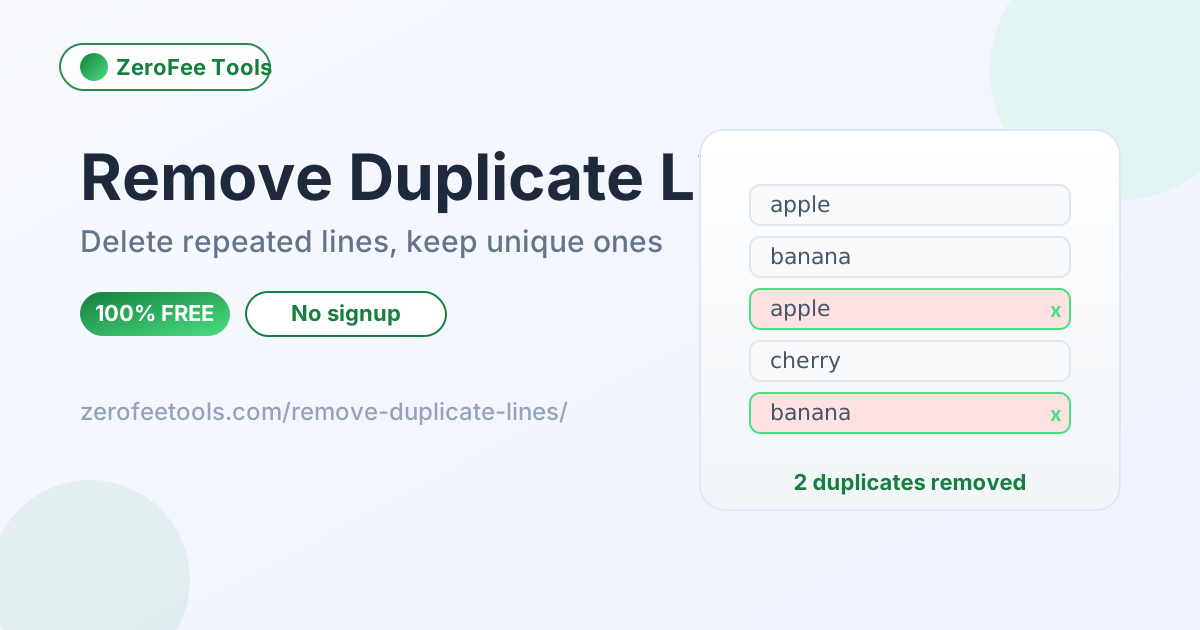
Paste your list into the remover and it deletes every repeated line instantly, keeping the first occurrence of each unique line and preserving the original order. The result panel reports exactly what happened: how many duplicates were removed, how many lines you started with, and how many unique lines remain. Copy the clean list or clear the box when done.
The classic case is keyword research. Export a few hundred keywords from your research tool and the same terms appear multiple times with slightly different metrics. Paste the list into the remover and you get a clean unique set in seconds, which is the correct starting point for prioritising and grouping. Doing this in a spreadsheet means writing a formula or using a dedupe dialog; here it is one paste.
Email lists are the other big one. Merging subscribers from a form, a spreadsheet and an old export guarantees duplicates, and sending twice to the same address annoys people and skews your metrics. Dedupe the merged list before importing it into your sender. Log files benefit too: collapsing repeated lines makes the unusual entries, the ones you actually need to read, stand out.
Should duplicate matching be case-sensitive?
The case-sensitive toggle decides whether 'Apple' and 'apple' count as duplicates. Turn it on for lists where capitalisation matters, like product names, usernames or codes. Turn it off for keyword lists and general text where the capitalisation is accidental. If the removed count looks wrong, flip the toggle and run the list again; it is instant.
With case-sensitive matching on, 'Apple' and 'apple' are treated as different lines and both survive. With it off, they count as the same line and the second one is removed. Neither setting is universally right; the correct choice depends on what the list represents. For product names, usernames or codes where capitalisation is meaningful, keep it on. For keyword lists or general text where the capitalisation is accidental, turn it off.
The safe workflow is to dedupe once with your best guess, then scan the removed count. If the number looks wrong, for example far fewer duplicates than you expected, flip the toggle and run it again. Because the tool is instant and free, experimenting costs nothing, and it beats discovering the mistake after the list has been imported somewhere permanent.
What happens to blank lines when I dedupe?
Use the ignore-blank-lines toggle to drop empty lines during cleanup, which is the right choice for lists you will sort, import or count. Keep blank lines only when they intentionally separate groups in a document you will read as text. The result message reports how many blank lines were ignored, so the cleanup is always verifiable.
Blank lines are a judgment call. A list copied from a web page or PDF often has stray empty lines scattered through it, and leaving them in produces a clean-looking list with invisible gaps that break sorting and imports. The ignore-blank-lines option drops them during cleanup, so the output is one continuous list.
Keep blank lines only when they carry meaning, such as separating intentional groups in a document you will keep reading as text. In every other case, especially before sorting, importing or counting, drop them. The result message even tells you how many blank lines were ignored, so you can confirm the cleanup did what you expected.
How do I verify the dedupe worked correctly?
The tool reports exactly what it did: duplicates removed, original line count, unique lines remaining, and blank lines ignored. Check those numbers before copying, especially when the list feeds an email import or published keyword set. If a number looks wrong, adjust the case or blank-line toggles and run the list again.
The result message is your audit trail: it states how many duplicates were removed, how many lines you started with, and how many unique lines remain, plus how many blank lines were ignored. If any of those numbers looks wrong, your options are probably misconfigured, not your data. Flip the case-sensitivity toggle and run it again.
This matters most when the deduped list feeds something permanent, like an email import or a published keyword set. A thirty-second sanity check on the counts catches configuration mistakes before they propagate. When the numbers match your expectations, copy the result with confidence; when they do not, the tool is instant enough to experiment until they do.
How to use the Duplicate Line Remover in 4 steps
- Paste your list. Put one item per line into the input box; the placeholder shows the expected format.
- Set your options. Toggle case-sensitive matching and blank-line handling to match what your list represents.
- Read the result. The output shows unique lines in original order, with a message like 'Removed 12 duplicates - 50 lines became 38 unique lines'.
- Copy the clean list. Use the copy button to grab the result, or clear the box and start a new list.
6 practical tips for cleaner lists
- Dedupe before importing anywhere. Clean email lists, keyword sets and inventories before they enter your sender, ad platform or spreadsheet.
- Match case sensitivity to the data. On for codes and names where capitalisation matters, off for keywords and casual text.
- Drop blank lines before sorting. Empty lines interfere with alphabetical sorting and imports, so ignore them during cleanup.
- Trust the removed count. The 'X lines became Y unique lines' message is your audit trail; if the number surprises you, check your options.
- Sort after deduping, not before. Run the clean list through the sort lines tool to get an ordered, unique list in two steps.
- Use the CSV tool for spreadsheet data. For multi-column files where only one column has duplicates, the CSV duplicate finder is the right tool.
Frequently asked questions
Is this duplicate remover free?
Yes, free and unlimited with no account or daily cap. Dedupe as many lists as you like, toggle case sensitivity and blank-line handling on each one, and copy every clean result.
Will it sort my list?
No. The tool only removes duplicate lines and keeps everything else in its original order, which is deliberate: order often carries meaning. For alphabetical ordering, run the unique result through the sort lines tool as a second step.
Does it work on comma-separated values?
Paste the values one per line and the tool compares whole lines, so it works on any list format. For true CSV files with multiple columns, the dedicated CSV duplicate finder is a better fit.
Is there a line limit?
There is no practical limit for normal use. The comparison runs in your browser in milliseconds, so lists with tens of thousands of lines are handled without trouble, and the result message always reports exactly how many lines became unique.
Is my list uploaded anywhere?
No, never. Everything runs in your browser with JavaScript, so your list stays on your device from paste to copy. Nothing is uploaded, stored or transmitted anywhere, which makes the tool safe for customer data and proprietary lists.
Ready to try it yourself? It's free, no signup required.
Try the free Duplicate Line Remover →