
How to Split One CSV Column Into Multiple Columns (Free)
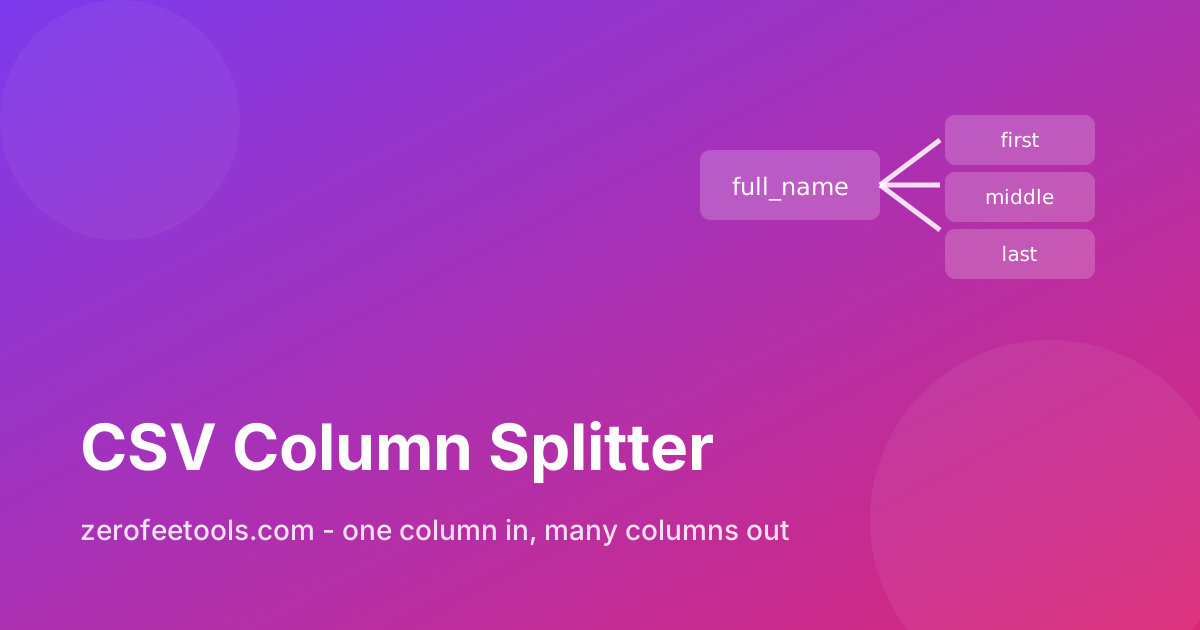
One of the most common spreadsheet headaches is a column that holds two values in one cell. A CRM export stores Doe, John in a single name field. A supplier feed puts street and city together in one address cell. A SKU like SHOE-RED-42 packs category, colour, and size into one string. You need those pieces in separate columns for sorting, filtering, and mail merges, but retyping them is out of the question. A CSV column splitter divides one column into several on a delimiter you choose, previews the new headers, and downloads the widened file. The widened file downloads as a standard CSV that any spreadsheet opens.
This comes up constantly in data cleanup. Marketers split full names for personalised emails, shop owners split composite SKUs for inventory reports, and analysts split location fields for pivot tables. If your data needs the opposite operation, the CSV column combiner merges columns back together, and the CSV cleaner tidies the file before you start.
Can I split a full name into first and last name?
Yes. Choose the name column and split on the delimiter the names actually use: a comma for values like Doe, John, or a space for John Doe. Preview the new headers first, since middle names and suffixes can produce extra parts that need tidying. Check a few rows before downloading the file.
Names are the classic case. A list of Doe, John values splits on the comma into last name and first name. A list of John Doe values splits on the space instead. The key is to match the delimiter to the format your data actually uses, not to the delimiter of the CSV file itself. A comma-separated file can easily contain a name column whose values are separated by spaces.
Watch out for middle names and suffixes. Mary Jane Watson splits into three parts on spaces, and Smith Jr, Robert carries a suffix. Preview the new headers and scan a few rows before downloading. If the name formats are inconsistent, split on the most common pattern first, handle the leftovers, and remember the column combiner can rejoin pieces you split too aggressively. Consistent formatting is the real prerequisite: if half the names use commas and half use spaces, standardise the column first or split in two passes.
What happens when rows split into different numbers of parts?
Uneven splits are handled safely. Rows that produce fewer parts get empty cells in the extra columns, so nothing is lost or shifted, and the blanks conveniently flag which rows had incomplete data for you to review. Longer rows are never truncated.
Real data is uneven. One address splits into street, city, and postcode, while another has only street and city. One SKU has three parts, another has two. A bad splitter would misalign everything after the first uneven row. This tool handles uneven splits safely: rows that produce fewer parts get empty cells in the extra columns, and nothing from longer rows is cut off.
Those empty cells are actually useful. They show you exactly which rows had less data, so you can filter for them in your spreadsheet and fill the gaps or investigate. Export the split file and re-import it into your system of record promptly, so the cleaned structure becomes the new source of truth. After splitting, sort by one of the new columns; the blanks rise to the top and the pattern of what is missing becomes obvious. This is far safer than a split that silently drops data.
How do I choose the right delimiter for a split?
Load your CSV, select the column, and set the delimiter to the character the values actually contain, which may differ from the file's own delimiter. Always preview the new headers first to catch mismatches before downloading the widened file. Test with a small sample before committing to the full file.
Start by pressing Load columns and picking the column to split. Then set the delimiter to the character inside the values: comma, semicolon, space, pipe, or a custom character. Press Preview split to see the new headers before anything is final. This preview step is where you catch delimiter mistakes, like splitting a name column on commas when the names are actually space-separated.
Also consider whether the delimiter appears inside the values for other reasons. Splitting an address on commas works until you hit Suite 100, Building A. In that case, look for a more reliable separator or clean the exceptions first. One clean split with the right delimiter beats three attempts with the wrong one. Document the delimiter you used in the file name or a readme, so the next person who touches the data does not have to guess.
How to use the CSV Column Splitter in 4 steps
- Paste your CSV and press Load columns. Drop the file into the tool so it can read the headers and show you the available columns.
- Choose the column to split. Pick the column holding combined values, like the full-name column, the address column, or the SKU column.
- Set the delimiter and preview. Enter the character the values contain, such as a comma for Doe, John or a space for John Doe. Press Preview split to check the new headers.
- Download the widened CSV. Confirm the preview looks right, then download. The original column stays in place, so delete it in your spreadsheet if you only need the pieces.
5 practical tips for clean column splits
- Match the delimiter to the values, not the file. A comma-separated file can hold a name column split on spaces. Look at the actual cell contents and choose the character inside them. Look at five sample rows minimum.
- Preview with the messiest rows in mind. Scan the preview for rows with suffixes, middle names, or extra commas. Fixing the delimiter choice now saves a second pass later.
- Split addresses in stages. A full address rarely splits cleanly in one go. Split street from city first, then split the remainder, rather than trying to explode everything at once.
- Keep the original column until the end. The split preserves it as an audit trail. Only delete it once the new columns have survived a sort, a filter, and your import.
- Combine what you over-split. If a split produced too many pieces, the column combiner rejoins columns with your chosen separator. Splitting is reversible, so experiment freely.
Frequently asked questions
Is this CSV column splitter free?
Yes. Split unlimited files with no account and no signup. The whole operation runs in your browser, so your data stays on your device. There are no limits on rows or columns.
Can I split full names into first and last names?
Yes, for values like Doe, John or addresses like 12 Main St, Springfield. Choose the column, set the delimiter it contains, and preview the new headers before downloading the widened file.
What happens when rows split into different numbers of parts?
They are padded, not lost. Uneven splits are handled safely: rows that produce fewer parts get empty cells in the extra columns, and nothing from longer rows is truncated. You can filter for the blanks afterwards.
Which delimiters can I split on?
Yes. Comma, semicolon, space, pipe, or any custom character you type. Match the delimiter to what actually appears inside the values, not to the delimiter of the CSV file itself.
Does splitting replace the original column?
The split creates new columns to the right of the original. If you only need the pieces, delete the original column in your spreadsheet afterwards, or keep it as an audit trail.
Ready to try it yourself? It's free, no signup required.
Try the free CSV Column Splitter →