
Free OCR: Extract Text From Images and PDFs Online
What the OCR Tool does (and who it's for)
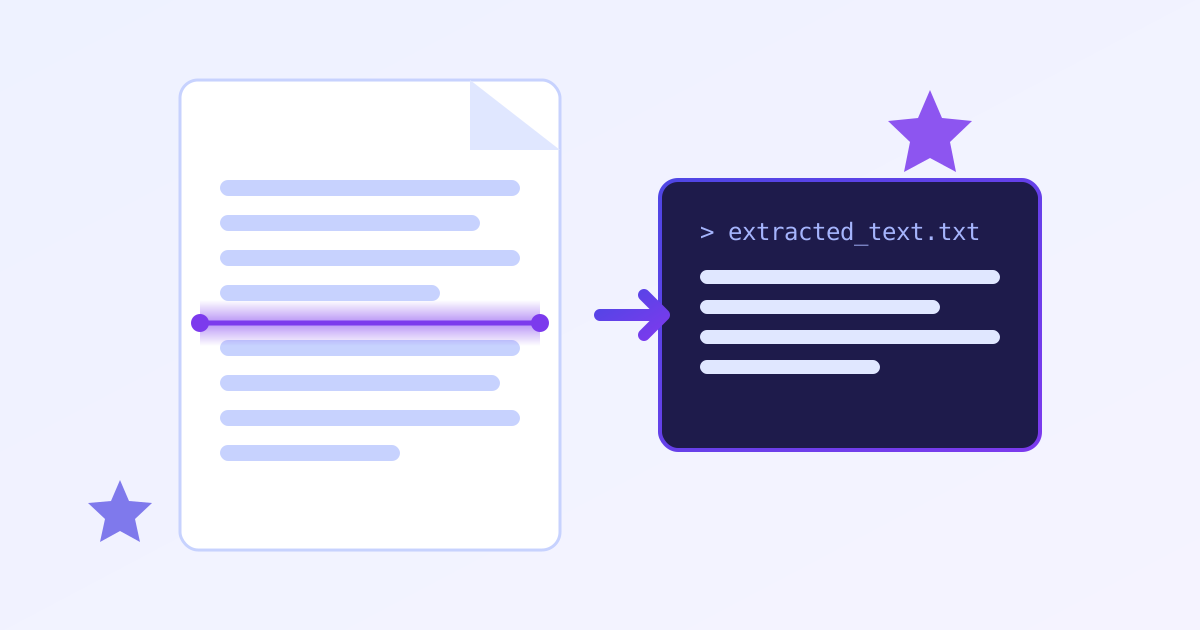
The free OCR tool from ZeroFee Tools reads text out of images and PDFs right in your browser: screenshots, scanned pages, photos of documents, even whiteboard shots. Choose the recognition language for best accuracy, then copy the result or download it as TXT. No signup, and your documents never leave your device, which matters when the paperwork is sensitive.
How do I extract text from an image for free?
Upload your image to the OCR tool, select the language the text is written in, and run recognition. The extracted text appears in seconds, ready to copy or download as a TXT file. Clear, straight-on photos of printed text produce near-perfect results with no account needed.
Crop to the text area first: less background noise means fewer errors.
Can OCR read handwriting or blurry photos?
Printed text in clear photos converts very reliably, but handwriting and blurry images are much harder: expect partial or garbled output. For the best results, use the sharpest original you have, keep the text horizontal, and choose the correct recognition language before processing.
For critical documents, always proofread the extracted text against the original.
It handles both images and PDFs (pick the PDF page to process), supports multiple Recognition language options, and runs entirely in your browser - your documents are never uploaded to a server.
How to extract text, step by step
- Choose your file. In step 1. Choose an image or PDF, upload a photo, screenshot, or PDF. For PDFs, select which PDF page to recognize.
- Preview and set options. Step 2. Preview & options shows your file - confirm it looks sharp and upright, and set the Recognition language to match the document's language.
- Extract. Click ⚙ Extract text and wait for the Recognizing… pass to finish. Clean documents take seconds.
- Use your text. In step 3. Extracted text, review the result, fix any misread characters, then 📋 Copy text to paste elsewhere or ⬇ Download .txt to save it.
5 practical tips for accurate OCR
- Straighten the photo first. Skewed, perspective-warped phone photos are the #1 accuracy killer. Hold the camera parallel to the page and fill the frame with text.
- Good light beats any setting. Even, shadow-free lighting matters more than resolution. Avoid flash glare on glossy paper - it whites out characters permanently.
- Set the right language. The Recognition language picker isn't cosmetic - matching it to the document dramatically improves results, especially for accented characters.
- Crop to the text. If your photo includes desk, hands, or background clutter, crop tight around the text block before extracting. Less noise, fewer phantom characters.
- Expect to proofread. Even the best OCR confuses similar glyphs (rn/m, 0/O, l/1). Budget a quick proofreading pass for anything important - it's still 10x faster than retyping.
Frequently asked questions
Can it read handwriting?
Printed and typed text works best. Neat handwriting sometimes works; cursive and messy script generally don't. For handwritten notes, the Speech to Text tool (reading them aloud) is often faster.
Are my documents uploaded anywhere?
No. Recognition runs locally in your browser, so sensitive documents - contracts, IDs, medical papers - never leave your device.
Why is my PDF not extracting well?
Scanned PDFs are just images, so photo-quality rules apply. If the PDF already contains selectable text (a "real" PDF), copy it directly instead - OCR is for image-based pages.