
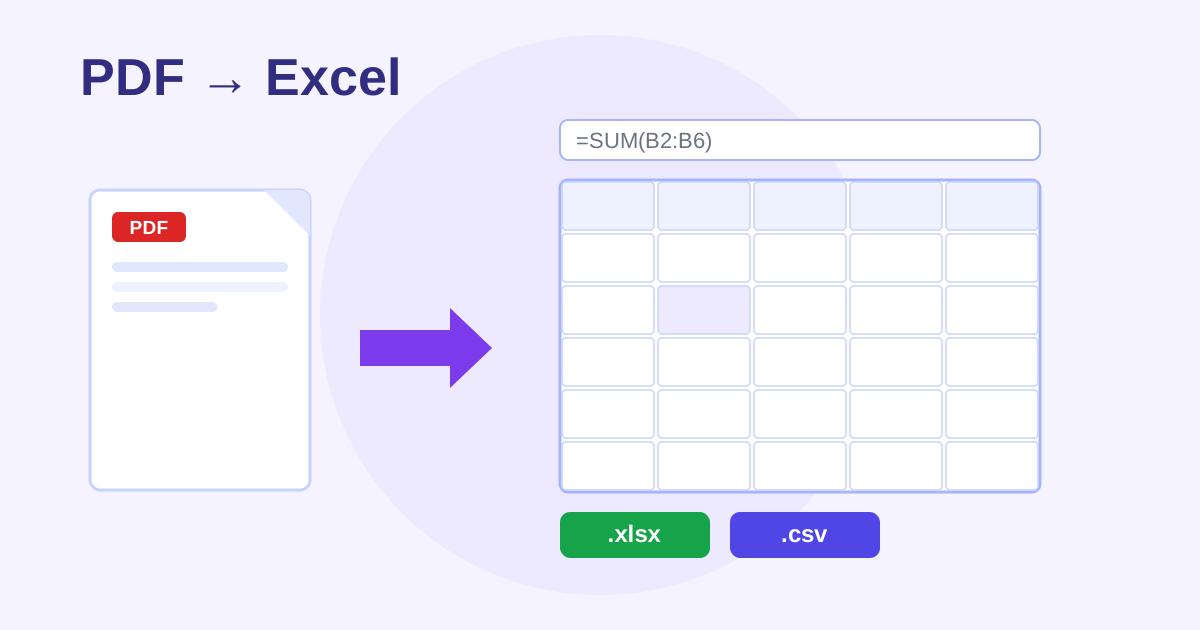
How to Extract Tables From PDF to Excel Free
Copy-pasting tables out of a PDF is a special kind of misery: columns collapse, numbers land in the wrong cells, and a 40-page bank statement becomes an afternoon of cleanup. PDF to Excel from ZeroFee Tools reads the tables in your PDF and turns them into a real, editable spreadsheet, free, unlimited, and processed privately in your browser. It is built for the documents that actually contain tables: bank and card statements, invoices, and reports.
How do I convert a PDF table to Excel for free?
Upload your PDF to the converter and let it detect the tables on each page. Review the extracted grid, click any cell to fix misread values, then download a genuine .xlsx or CSV file you can sort, filter, and formula-drive. No signup, and your financial documents never leave your device.
Merged cells and tiny fonts may need touch-ups in the review step.
Does it work on scanned PDF statements?
Poorly on its own: scanned pages are images with no underlying table data for the extractor to read. Run the scan through an OCR tool first to create a searchable PDF, then extract the tables. Clean, digitally generated PDFs from banks convert with very high accuracy.
Always spot-check totals against the original before relying on the data.
It is built for the documents that actually contain tables: bank and card statements, invoices, expense reports, and price lists. You get to review and correct every cell before downloading, so the spreadsheet you save is the spreadsheet you wanted.
How to extract tables step by step
- Upload a PDF - drop it on the page or click to browse. The tool works best with digital PDFs that contain real tables (bank statements, invoices, reports), as noted right in the interface.
- Choose pages: pick which pages contain the tables you need instead of converting the entire document.
- Review & edit: the extracted data appears in an editable grid. Click any cell to fix it - correct misread numbers, fix merged headers, and use the + Row, − Row, + Column, and − Column buttons to reshape the table.
- Download your spreadsheet: click Download .xlsx for a formatted Excel file (each PDF page becomes its own sheet) or Download .csv for a plain-data file that imports anywhere.
5 practical tips
- Feed it digital PDFs, not phone photos of paper. Extraction reads the PDF's underlying data - a crisp exported statement converts beautifully, while a crooked photo of a printout will struggle.
- Fix cells before downloading, not after. The review grid is your quality-control step; five minutes of corrections here beats hunting errors across a finished spreadsheet.
- Use CSV for imports, XLSX for humans. Accounting software and databases prefer CSV; if a colleague will open the file, the multi-sheet XLSX is friendlier.
- Remember the one-page-one-sheet rule. Each PDF page becomes its own sheet in the Excel file, so multi-page statements arrive neatly separated by page.
- Watch for merged header cells. Fancy statement headers often merge cells - split them with the row/column controls during review so sorting and filtering work later.
FAQs
Does it work on scanned PDFs?
Poorly - scanned pages are images without underlying table data. For scans, run the PDF through an OCR tool first to create a searchable PDF, then extract.
How accurate is the extraction?
Very good on clean, digital tables. Complex layouts with merged cells or tiny fonts may need touch-ups, which is exactly what the click-to-edit review step is for.
Is my financial data safe?
Yes. The PDF never leaves your browser - nothing is uploaded, so bank statements and invoices stay on your device.