
Free Screen Recorder: Capture Your Screen With No Watermark
What the Screen Recorder does (and who it's for)
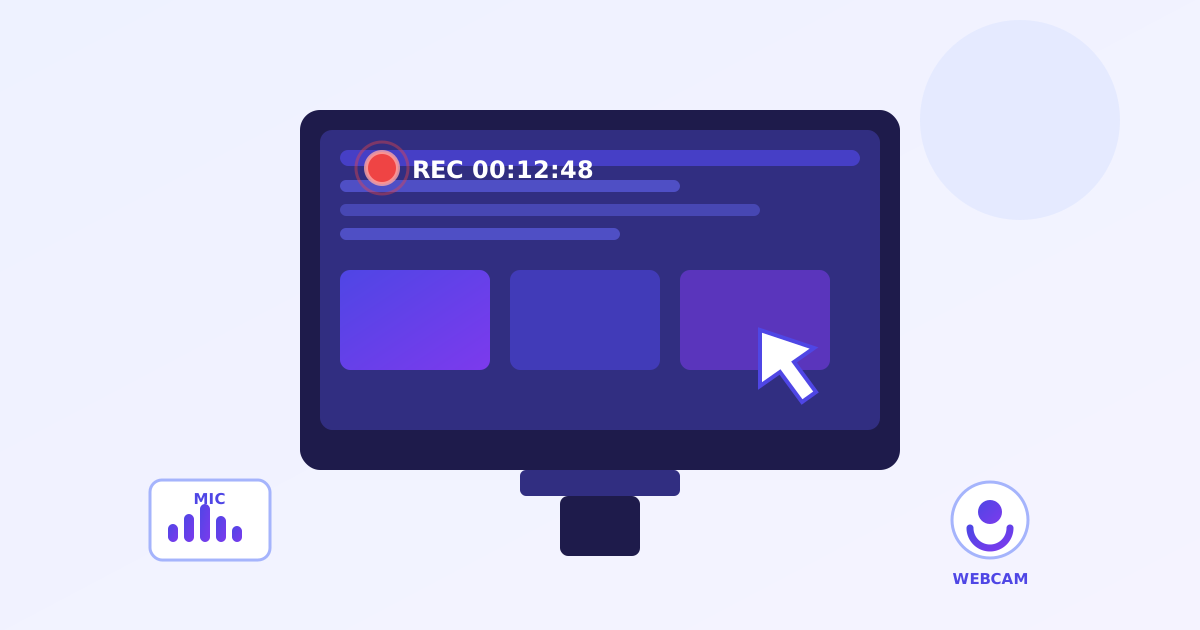
The free Screen Recorder from ZeroFee Tools captures your screen right in the browser: full screen, a window, or a tab, with microphone narration, system audio, and an optional webcam overlay. No signup, no watermark, no time limits, and no software to install. It is built for tutorial makers, support teams recording bug demos, and anyone who needs to show rather than tell.
How do I record my screen for free?
Open the Screen Recorder, choose whether to capture the full screen, a window, or a browser tab, and enable microphone or system audio as needed. Hit record, do your demo, then stop and download the video. There is no time limit, no watermark, and no account standing between you and the recording.
Close notification-heavy apps first to keep the capture clean.
Can I record my screen with audio?
Yes. Enable the microphone option to narrate as you record, turn on system audio to capture the sounds your computer plays, or use both at once for narrated software demos. A quick test clip confirms your levels are right before you record the full session.
A basic headset mic beats a laptop mic for tutorial audio quality.
The honest pitch: no signup, no watermark, and no recording time limits - three things most "free" recorders all restrict. Recording uses your browser's built-in capture, so it works best in Chrome and Edge on desktop.
How to record your screen, step by step
- Set your options. On the Record your screen screen, toggle Microphone for narration, System audio to capture the computer's sound, and Webcam for a face overlay.
- Start recording. Click ⏺ Start recording, then pick what to share in the browser prompt: entire screen, a window, or a tab. Recording begins immediately.
- Pause when needed. Use ⏸ Pause during dead moments (waiting for a page to load, collecting your thoughts) so the final video stays tight.
- Stop and download. Click ⏹ Stop & download to end the session and save the video. On the Done! Here's your recording screen, preview it - then hit ⏺ Record another for take two, or Back to options to change your audio setup.
5 practical tips for better recordings
- Record a tab, not the screen. Sharing one tab hides your bookmarks, notifications, and other windows - instant professionalism, zero editing.
- Do a 10-second mic test. Record a throwaway clip first and play it back. Discovering your mic was muted after a 20-minute tutorial is a special kind of pain.
- Close noisy tabs. Slack pings, email toasts, and calendar popups all get captured. Enable Do Not Disturb and close chat apps before you hit record.
- Pause, don't ramble. The Pause button is your editing suite. Pause while pages load or while you think - viewers forgive a jump cut, never dead air.
- Zoom to 125%. Bump your browser zoom before recording so text stays readable when viewers watch on phones.
Frequently asked questions
Is there a recording time limit?
No. Record as long as you like - though very long sessions create large files, so consider trimming or compressing afterwards with the sibling tools.
Why can't I hear my voice in the recording?
Check two things: the Microphone toggle was on before you started, and your browser had mic permission. Also confirm you selected a mic (not "no audio") - re-record a 5-second test to verify.
Does it work on phones?
Screen capture is a desktop-browser feature. For phone recordings, use your device's built-in screen recorder, then trim and compress the file here.