
Free Video Compressor: Shrink Videos to Any Target Size
What the Video Compressor does (and who it's for)
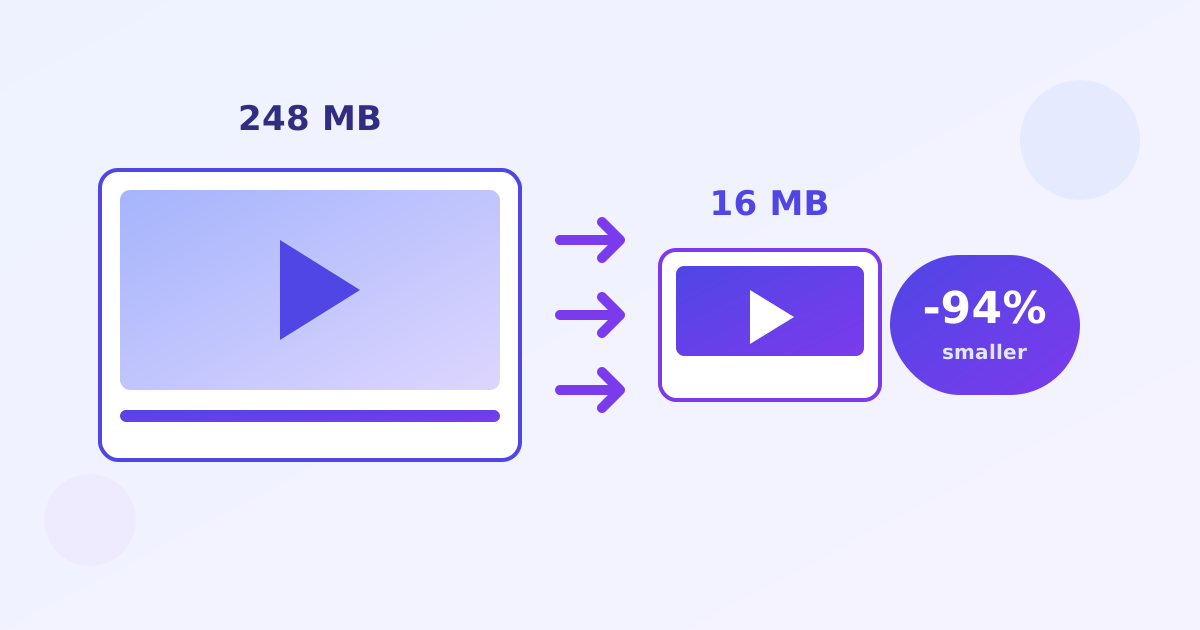
The free Video Compressor from ZeroFee Tools shrinks videos to any target size you set: the WhatsApp 16 MB limit, Discord's 25 MB cap, or your own custom megabyte target. No signup, no watermark, and no file-size games. Everything runs in your browser, with honest notes about the trade-off between size and quality so you know what to expect.
How do I compress a video for WhatsApp for free?
Upload your video to the compressor and set the target to 16 MB, the WhatsApp sending limit. The tool re-encodes the video to fit, balancing bitrate and resolution to keep it looking decent. Download the result and send it directly: no more failed sends or WhatsApp's own heavy recompression surprises.
Trimming the clip first also helps: shorter videos compress far more cleanly.
Will compressing my video ruin the quality?
Smaller files always cost some quality, but a good compressor spends your megabyte budget wisely: sensible targets look fine on phones and social feeds, while extreme squeezes show blockiness. If the result looks rough, raise the target size or lower the resolution one step instead of crushing the bitrate.
Always keep your original: you can recompress, but you cannot restore quality.
It's made for phone-recorded clips that won't attach to emails, screen recordings that are too heavy for Slack, and 4K footage that needs to become a shareable file. Honest caveat, same as the other video tools: first use downloads a ~24MB video engine (cached after that), and compression runs locally in your browser - nothing uploads.
How to compress a video, step by step
- Drop your video. Open the Video Compressor and drop a file onto the drop zone or click to browse.
- Pick a target. Tap a preset - WhatsApp 16 MB, Discord 25 MB, 8 MB, 50 MB - or type any number into Target size (MB). Match the preset to where the video is going.
- Compress. Click Compress video. The first run downloads the ~24MB engine; afterwards the job starts right away. Encoding runs on your device, so long 4K clips take a few minutes.
- Download. Save the compressed file, check it plays, and confirm it fits your platform's limit. Try again re-runs with adjusted settings; Clear resets for the next file.
5 practical tips for smaller files that still look good
- Target the platform, not the smallest number. WhatsApp will re-compress anyway - 16 MB is plenty. Squeezing to 8 MB when the limit is 25 MB just costs you quality for nothing.
- Trim before you compress. Cutting dead seconds with the Video Trimmer first means fewer frames to encode - smaller file, same quality per second.
- Expect the quality trade-off. Compression is a bargain: fewer megabytes for slightly softer detail. Talking-head and screen recordings compress far better than confetti, water, or sports footage.
- Keep your master. Compress a copy, archive the original. You can always make a smaller file later, but you can't un-compress.
- Let the tab finish. Encoding happens in the browser tab - don't close it mid-run. For hour-long videos, plug in your laptop and be patient.
Frequently asked questions
Will compression add a watermark?
No. Output is clean, with your original audio untouched and no branding added.
Why is my compressed video still slightly over the target?
Encoders aim at the target but container overhead can add a few KB. If a platform is strict, set the target 1–2 MB under the limit to be safe.
Does it work offline?
After the first load (which fetches the ~24MB engine), yes - the engine is cached and compression runs fully on your device.