
Free Online Video Trimmer: Cut Clips Without Installing Anything
What the Video Trimmer does (and who it's for)
The free Video Trimmer from ZeroFee Tools cuts videos right in your browser: trim the start and end, slice out the middle, change aspect ratio for different platforms, rotate sideways footage, and export a clean MP4. No signup, no watermark, no software to install. Perfect for clipping highlights, cutting dead air from recordings, and reframing horizontal video for vertical feeds.
How do I trim a video online for free?
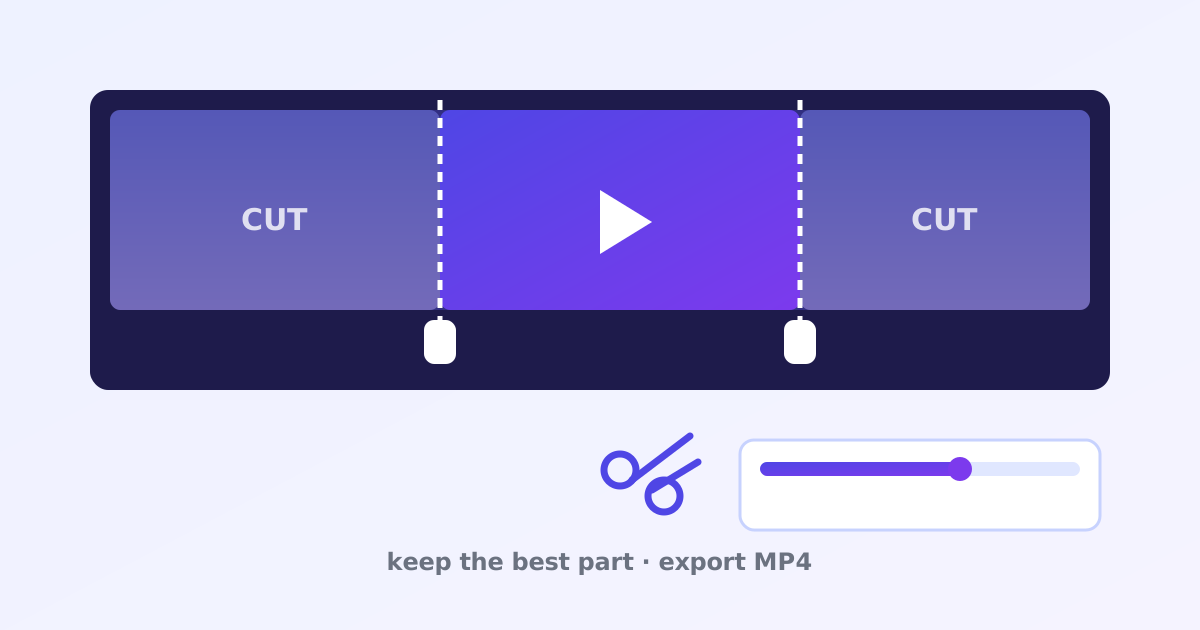
Upload your video to the trimmer and drag the start and end handles to the exact points you want to keep. Preview the cut to check it, then export the trimmed clip as MP4. The process runs entirely in your browser with no account, no watermark, and no software download.
Cut slightly wide, then fine-tune: you can always trim more, never less.
Can I change a video from horizontal to vertical?
Yes. Set the aspect ratio to 9:16 and reposition the frame over the part of the scene that matters most. This reframes landscape footage for Reels, Shorts, and TikTok without stretching or squashing anything. Export as MP4 and it is ready to upload to vertical-first platforms.
Keep faces and key action inside the vertical crop box.
It's for creators clipping highlights for Shorts and Reels, teachers trimming lecture recordings, and anyone who needs a quick cut without opening Premiere. Everything runs in your browser; export is a clean MP4 with no watermark.
How to trim a video, step by step
- Load your video. Open the Video Trimmer and choose your file in the Trim a video screen.
- Set your cut points. In the Edit view, drag the timeline handles to mark the start and end of the part you want to keep.
- Preview the cut. Click ▶ Preview trimmed part to watch exactly what will be exported - this is where you catch cuts that start mid-word.
- Fix orientation (optional). Tap 🔄 Rotate to correct sideways footage, and pick an aspect ratio - 9:16 for Shorts/Reels/TikTok, 1:1 for feed posts, Original to leave the frame alone.
- Export. Click ⬇ Export video (MP4) and download the result. On the Done! Preview your video screen, use Edit another video or Choose a different video to keep going.
4 practical tips for cleaner cuts
- Leave handles on dialogue. Start your cut a quarter-second before someone speaks and end a beat after - cuts that clip the first syllable scream "amateur."
- Reframe when you change aspect ratio. Going from 16:9 to 9:16 crops the sides hard. Preview after switching and nudge the framing so faces stay centered.
- Cut on motion. Trimming mid-gesture or mid-pan hides the edit; cutting during a frozen pause makes every cut visible. Scrub frame by frame for precision.
- Export once. Every MP4 re-export loses a little quality. Trim from the original file, not from a previously exported clip.
Frequently asked questions
Does trimming reduce video quality?
The export re-encodes to MP4, so there can be a small quality change, but for normal trims it's imperceptible. Keep your original file archived and export once.
Can I trim the middle out of a video?
The trimmer keeps one continuous segment (start to end). To remove a middle section, export two trims and join them - or trim the section you want as a standalone clip.
What formats can I load and export?
It accepts common formats like MP4, MOV, and WebM, and always exports MP4 - the most universally playable format there is.