
Free Video Converter: Change Video Formats Online, No Watermark
What the Video Converter does (and who it's for)
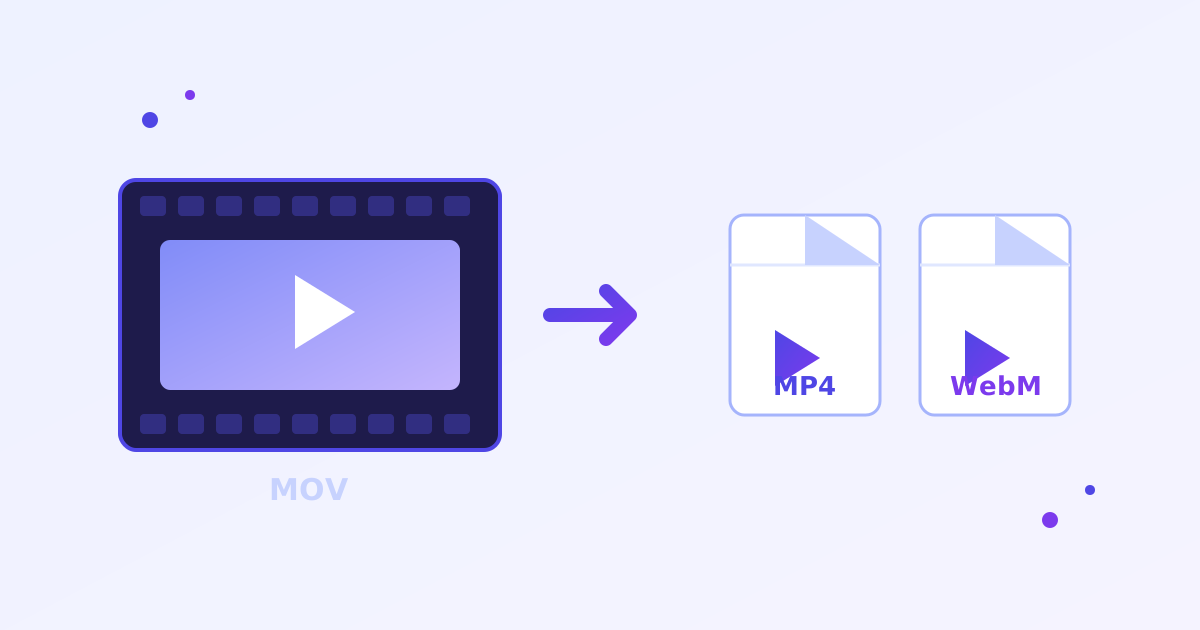
The free Video Converter from ZeroFee Tools changes video files between formats entirely in your browser: MP4 for universal playback, WebM for the web, and more. No signup, no watermark, no file-size games. One honest note: the first conversion downloads a ~24 MB encoding engine, then later conversions start instantly. Your videos never leave your device.
How do I convert a video file for free?
Drop your video into the converter and pick the output format, such as MP4 for maximum compatibility or WebM for web embedding. The first run downloads a small encoding engine, then the conversion happens locally on your device. Download the finished file with no watermark and no account.
MP4 with H.264 plays on virtually every device and platform.
Why is the first video conversion slow?
The first conversion downloads the in-browser encoding engine (about 24 MB) plus supporting files, which takes a little while depending on your connection. Every conversion after that reuses the cached engine and starts immediately. It is a one-time cost for unlimited free conversions afterwards.
Keep the tab open during the first download so nothing interrupts it.
Unlike most "free" converters, there's no queue, no daily conversion cap, and no watermark stamped on your output. One honest caveat: on first use the tool downloads a roughly 24MB video engine into your browser (cached afterwards), so allow a few seconds on a slow connection before your first conversion.
How to convert a video, step by step
- Drop your video. Open the Video Converter and drop a file onto the drop zone - or click to browse. Your file never leaves your device; conversion runs locally.
- Choose the output format. Pick the target format from the format selector. Not sure? MP4 (H.264) is the universal safe choice - it plays virtually everywhere.
- Click Convert. Hit Convert and watch the progress bar. The first run includes the one-time ~24MB engine download; subsequent conversions start immediately.
- Download your file. When the status flips to done, download the converted video. If anything failed, Try again re-runs with the same settings, and Clear resets for a new file.
5 practical tips
- Pick MP4 when in doubt. MP4 with H.264 video plays on every phone, browser, TV, and social platform. Only choose WebM when you specifically need it (web embeds, smaller files for Chrome-heavy audiences).
- Converting won't improve quality. A converter changes the container and codec, not the pixels. A blurry source stays blurry - set expectations accordingly and keep the original if quality matters.
- Big file? Compress first. Converting a 2GB MOV to MP4 still gives you a ~2GB MP4. For sharing, run the result through the Video Compressor afterwards to hit WhatsApp or Discord limits.
- Keep the original. Lossy-to-lossy conversion (e.g., MP4 → WebM) discards a little quality each generation. Archive the source file and convert copies, not the master.
- Mind your browser tab. Conversion happens in the tab - closing it mid-run cancels the job. For very long videos, leave the tab open and let it finish.
Frequently asked questions
Is there a file size limit?
No artificial limit - but conversion happens in your browser's memory, so extremely large files (multiple GB) may strain low-RAM devices. For everyday clips under a few hundred MB, it just works.
Why does the first conversion take longer?
The tool downloads a ~24MB video engine on first use, then caches it. That one-time wait buys you unlimited offline-speed conversions afterwards - no server queue, no upload time.
Are my videos uploaded anywhere?
No. The file is processed locally on your device and never sent to a server. That also means it works with sensitive footage you'd never want to upload.